
To generate a strong password, let a random process pick it for you: use a random password generator, a passphrase made of randomly chosen words, or dice, and make the result at least 16 characters (or six words) long. Strength comes from randomness and length, not from clever substitutions, so the safest approach is never to invent the password yourself.
How to Generate a Password (The Short Answer)
Three reliable methods: a random generator, a passphrase, or dice
Three dependable ways to generate a password. A random password generator picks every character for you in seconds, a passphrase strings together several randomly chosen words, and the dice method does the same with physical dice and a printed word list. All three work for the same reason: they rely on chance rather than human choice, which removes the patterns attackers exploit.
Which method fits which account
Use a random character string for any account whose password lives in a password manager, because you never need to read or type it. Use a passphrase for the few passwords you must remember or type yourself, such as a password manager master password, a laptop login, or a Wi-Fi key. Use dice when you want a password that never touched a device, which suits a master password or an offline recovery secret.
What “random” really means for a password
A random password is one where every character was chosen independently, with every allowed character equally likely, by a source an attacker cannot predict. A password that merely looks messy, such as a word with a few letters swapped for symbols, isn’t random because a person chose the pattern. True randomness has no pattern to guess, which makes it hard to crack.
Method 1: Use a Random Password Generator
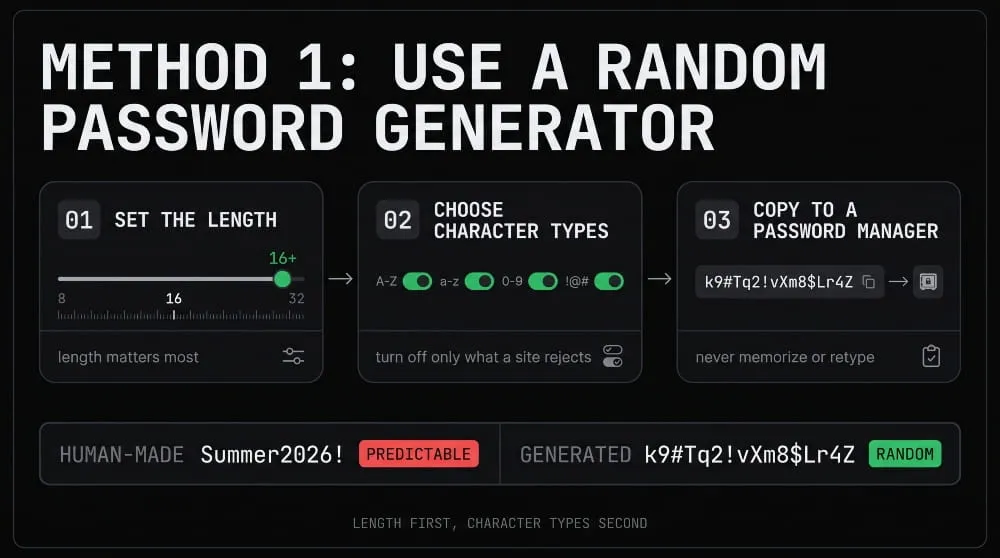
How to generate a secure password in three steps
To generate a secure password with a tool, open a password generator, set the length, and copy the result. First, choose a length of 16 characters or more. Second, keep uppercase letters, lowercase letters, numbers, and symbols switched on unless the site rejects some of them. Third, paste the password straight into a password manager so you never have to memorize or retype it.
Settings that matter: length first, character types second
Length matters most because each added character multiplies the number of possible passwords by the character set size. Character types matter second: turning on all four raises the strength of each character from about 4.7 bits (lowercase only) to about 6.5 bits. If a site limits the character types you can use, make up the difference with extra length rather than accepting a shorter password.
Why a generated password beats one you invent
A generator beats your own invention because it has no habits. People reuse favorite words, capitalize the first letter, add a number at the end, and swap letters for look-alike symbols, and attackers build those habits into their guessing rules. A generator treats every position and every character as equally likely, so there is no habit to exploit.
Method 2: Generate a Passphrase
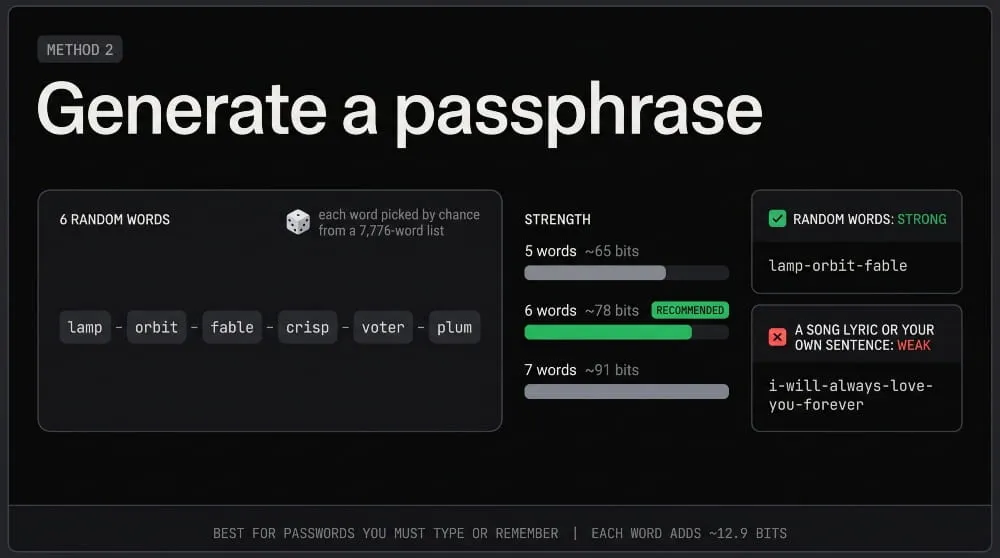
How a passphrase works and when it beats a random string
A passphrase is a password made of several randomly chosen words, such as five or six unrelated words joined by a separator. It beats a random character string when you have to remember or type it, because words are much easier to recall than symbols. It can be just as strong as a random string, provided you pick the words at random rather than choose them yourself.
Diceware: picking words with dice
Diceware selects each word by rolling dice against a numbered list of 7,776 words, so every word is chosen purely by chance. Each word adds about 12.9 bits of strength. A tool that draws words from a list like this does the same job without dice, and gives the same strength when the selection is random.
Human-readable and pronounceable passwords
A human-readable or pronounceable password uses random syllable patterns, so you can say it aloud and type it without errors. The pattern limits which characters can follow each other, so each character carries less strength than in a fully random string, and these passwords need to be longer to match. They suit cases where you must dictate a password or type it on an awkward device.
How many words you need
Five random words give about 65 bits of strength, six give about 78, and seven give about 91. Six words is a sensible default for anything important, and it is the length the Electronic Frontier Foundation recommends for its Diceware word lists. These numbers hold only if the words are random; a line from a song or a sentence you made up is far weaker, no matter how many words it contains.
Method 3: Generate a Password Without a Tool
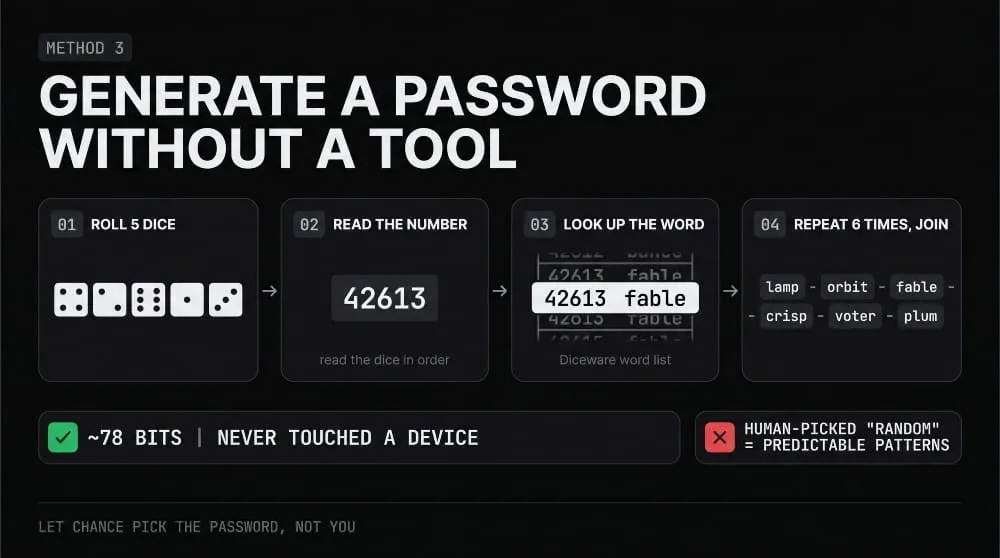
The dice and word-list method, step by step
You can generate a strong password with nothing but dice and a printed word list. Roll five six-sided dice and read the digits in order as a five-digit number. Find that number on a Diceware word list, such as the one published by the Electronic Frontier Foundation, and write down the word. Repeat until you have six words, then join them with a separator. The result carries about 78 bits of strength and never passed through a device.
Why human-picked “random” passwords fail
When people try to invent a random password, they follow predictable patterns, and attackers guess those patterns first. The U.S. National Institute of Standards and Technology (NIST SP 800-63B) advises organizations to drop forced composition rules, such as requiring a symbol, and instead check new passwords against lists of common and previously breached passwords because human-made patterns are easy to guess. Letting chance choose the password removes the human pattern entirely.
How Long Should a Generated Password Be?
12, 16 and 20 characters: what each is suited for
A 12-character random password is the practical minimum for an account you care about, and 16 characters is the best default for most accounts. Use 20 characters or more for credentials that protect everything else, such as a password manager master password, administrator accounts, recovery keys, and service accounts. Store those in a vault rather than typing them, so the extra length costs nothing.
Entropy explained in plain terms.
Entropy measures a password’s unpredictability, expressed in bits. Each added bit doubles the number of guesses an attacker needs, so a password with 80 bits of entropy has 2^80 equally likely possibilities. Entropy is only meaningful for passwords chosen by a random process, which is why a generated password is far stronger than a human-made one of the same length.
Length vs complexity
The table below assumes a random password using all 94 printable characters and an attacker making 100 billion guesses per second against a stolen, fast-hashed password, which is a deliberately severe offline scenario.
These figures show scale, not guarantees, and real attackers rarely brute-force a random password. The point of the table is that length beats complexity: four extra characters do far more than a symbol requirement.
Are Generated Passwords Safe?
Are password generators secure? Local vs server-side generation
A password generator is secure when it creates the password on your device using a cryptographically secure random source and never sends it anywhere. Server-side generation is riskier because the password crosses the network and could be logged. You can check a generator yourself: open your browser’s developer tools, watch the network tab, and click Generate. A local generator makes no request when it produces a password.
Browser and password-manager generators compared.
Passwords from a browser or password manager generator are safe, and their main advantage is convenience, since they save the password and fill it in for you. An online generator is faster for a quick, one-off password when you don’t want to install or sign in to anything. Both are fine as long as the randomness is cryptographically secure and the result ends up in a password manager.
Red flags in a password generator
Be wary of a generator that sends the password to a server or emails it to you, requires an account, builds the password from your name or personal words, or cannot explain how it produces randomness. Pages crowded with ads, pop-ups, or downloads are another warning sign. A trustworthy tool is simple, explains its method, and keeps the password on your screen only.
Password Generator Rules and Requirements
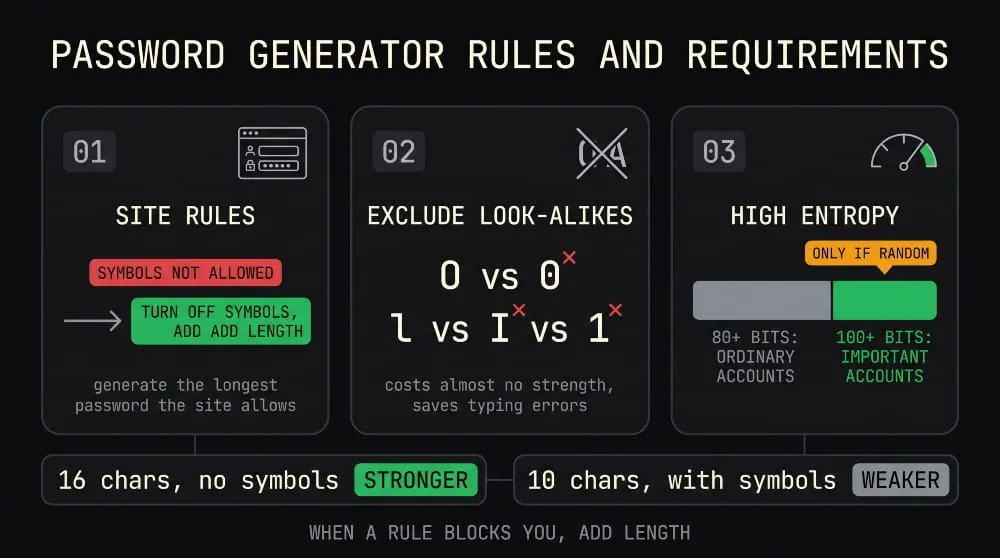
Site-specific rules and how to work within them
Some sites cap the length, require certain character types, or reject particular symbols. When that happens, generate the longest password the site allows, and if a symbol is refused, turn that character type off and add length instead. A slightly longer password without symbols is stronger than a shorter one with them.
Excluding look-alike and unsupported characters
Certain characters are easy to misread, such as the capital letter O and the number 0, or the lowercase l, the capital I, and the number 1. Excluding them in your generator settings costs very little strength, because you are removing only a few characters from a pool of dozens, and it saves errors when you have to type the password by hand.
What high-entropy actually means
A high-entropy password has a very large number of equally likely possibilities, which in practice means a long, randomly generated string. As a working rule, aim for at least 80 bits for ordinary accounts and 100 bits or more for important ones. The measure only applies to random passwords: a passphrase taken from a song has far less real entropy than its length suggests.
What to Do With a Generated Password
Store it in a password manager.
Put the new password in a password manager rather than trying to memorize it. A random 16- or 20-character password is impossible to remember, and a manager keeps it encrypted and fills it in for you. For how to handle credentials across an organization, see credential management.
Never reuse it
Use each generated password for only one account. When a site is breached, attackers replay the stolen email and password pairs against other sites, a technique called credential stuffing, and a reused password lets a single breach unlock many accounts.
Turn on multi-factor authentication.
A strong password protects you from guessing, and multi-factor authentication protects you if an attacker steals your password anyway. Turn it on for every account that offers it, and prefer an authenticator app or passkey over text messages. A unique generated password plus a second factor stops most account takeover attempts.
Check its strength
Generated passwords are strong by design, but your existing passwords may not be. To test an existing password or see whether it has appeared in a leak, use our password checker guide, and replace any weak or exposed password with a freshly generated one.
Generating Passwords for Teams and Client Environments
Unique credentials per account and per client
The safest practice for teams is to use a separate, randomly generated password for every account and client. Use long passwords, keep them in a shared team vault rather than in documents or chat, and rotate them whenever someone leaves the team. Shared and default passwords are a common weak point because one leak exposes everyone who uses them.
Catching exposed credentials after generation
A strong generated password cannot protect you if malware steals it later or a third-party breach leaks it. That is why generation should be paired with monitoring that tells you when credentials appear in leaks. Credential exposure monitoring shows which accounts are exposed so you can rotate them quickly, and Mispar gives MSSPs that visibility across every client they manage.
How to Generate a Password FAQs
How do I generate a strong password?
Use a random password generator, a randomly chosen passphrase, or dice, and make the result at least 16 characters or six words long. Store it in a password manager and use it for one account only.
Are generated passwords safe?
Yes, when you create them on your device using a cryptographically secure random source and never send them to a server. Check that the generator makes no network request when you click Generate.
What’s the difference between a password and a passphrase?
A password is typically a string of random characters, while a passphrase is a series of randomly chosen words. Passphrases are easier to remember and type, so they suit master passwords and device logins, and random strings suit passwords stored in a manager.
Is a generated password better than one I make up?
Yes. People follow predictable patterns even when they try to be random, and attackers build those patterns into their guesses. A generator chooses each character independently, removing patterns.
How long should a generated password be?
Use 16 characters for most accounts and 20 or more for administrator, vault, and recovery credentials. A random 12-character password is the practical minimum for accounts you care about.
Can I generate a password without a tool?
Yes. Roll five dice, look up the number on a Diceware word list, and repeat for six words. The result is a strong passphrase that never touched a device.
What is a password generator?
A password generator creates a random password, usually letting you choose the length and which character types to include. Its value is that chance, not a person, picks the characters.
Can a generated password still be leaked?
Yes. A strong password cannot be guessed, but it can still be stolen through malware, phishing, or a breach of the site that stores it. Use a unique password for each account, turn on multi-factor authentication, and monitor for exposure so you can replace any leaked password.