
A compromised password has been exposed to someone who shouldn’t have it, so you can no longer trust it to protect your account. If yours has been compromised, change it immediately, change it anywhere you reused it, and turn on multi-factor authentication. This guide explains how passwords get compromised, how to check whether yours has been, and how to respond.
What Is a Compromised Password?
Compromised password meaning and definition in plain terms
A compromised password is a password that has been stolen, leaked, or otherwise exposed, so an attacker can use it or already knows it. The password itself may have been strong. It’s compromised because someone else has it, so the right response is to replace it, not strengthen it.
Compromised vs weak vs leaked vs breached passwords
These terms overlap but describe different things. A weak password is easy to guess, a leaked password has appeared in a published or shared dataset, and a breached password came from a data breach at a site that stored it. A compromised password is the broader category: any password an attacker has obtained or can reasonably be expected to have, whether it is weak, leaked, or breached.
Why a compromised password is serious
A compromised password is serious because it lets an attacker sign in as you, and they will usually try it on your other accounts as well. Many people reuse passwords, so one exposed password can lead to your email, banking, and work accounts. Email is the most dangerous case, because an attacker who controls your inbox can reset the passwords for everything else.
Compromised passwords and compromised credentials
Compromised passwords are one part of the wider problem of compromised credentials, which also includes usernames, session tokens, and API keys. For how stolen credentials are used against organizations, see compromised credentials.
How Passwords Get Compromised
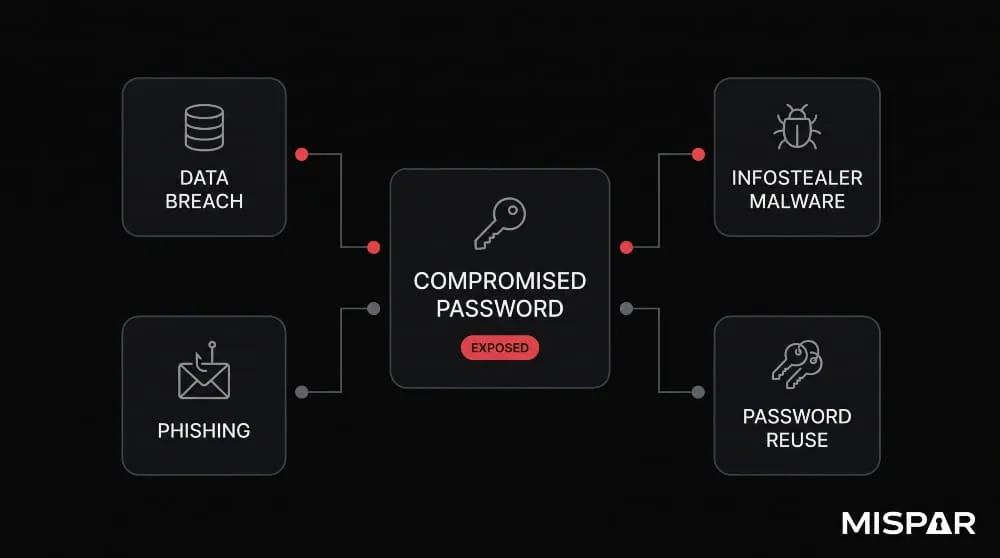
Data breaches at the sites that store them
The most common route is a breach at a company that holds your password. If attackers steal the company’s database, they can crack or directly read the passwords inside, and you cannot prevent this even if you did everything right. That is why every account needs its own unique password, so one breach cannot spread.
Phishing and social engineering
Phishing tricks you into handing over your password, usually through a fake login page you reach from an email, text message, or ad. The page looks identical to the real one, and anything you type goes straight to the attacker. Checking the web address before you sign in and using a password manager that only fills in on the genuine site blocks most of these attempts.
Infostealer malware
Infostealer malware is software that runs on your device and quietly collects saved passwords, browser cookies, and other credentials, then sends them to an attacker. It often arrives through pirated software or malicious downloads. Learn more about how it works in the guide to infostealer malware.
Password reuse and credential stuffing
When an attacker tries a password from one breach on other sites, the technique is called credential stuffing, and it works whenever people reuse passwords. A single exposed password then compromises every account that shares it. The full mechanics are covered in the guide to credential stuffing.
Why all your passwords can seem compromised at once
If a browser or manager flags many passwords at once, the usual cause is reuse: one exposed password used on a dozen sites produces a dozen warnings. Another cause is age, because older accounts may appear in breaches from years ago. A long list of warnings usually means a few underlying passwords need replacing, not that dozens of separate attacks happened.
How to Check If Your Password Is Compromised
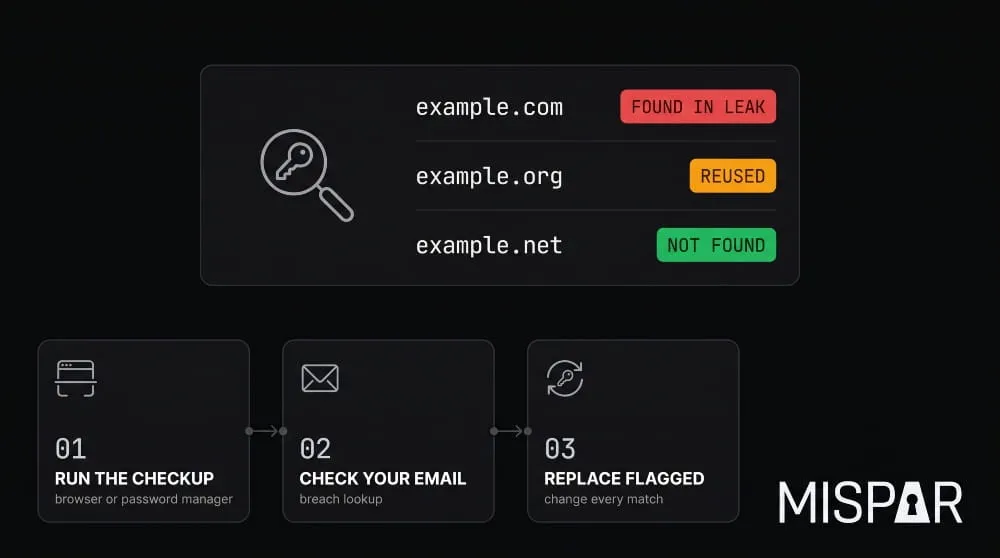
Is my password compromised? A step-by-step check
To check, run your saved passwords through the built-in checkup in your browser or password manager, then look up your email address in a breach-check service. The checkup compares your saved passwords against known leaked lists and flags matches. If any show up, treat those passwords as compromised and replace them. Do not type your real passwords into an unfamiliar website to test them.
Checking against a compromised password database or search
Compromised password databases are collections of passwords that have appeared in known leaks, and reputable lookup services let you test a password without revealing it. They do this by sending only a small fragment of the password’s hash, so the service never sees the full password. A found result means the password is in circulation. A not-found result is good news but not a guarantee, because no database contains every leak.
What a browser or password-manager “compromised password” warning means
A compromised password warning means the password you saved matches one that appeared in a known data leak. It does not necessarily mean someone has accessed your account. It means the password is no longer safe to use, because attackers can try it. Treat the warning as a prompt to change the password now.
How to tell which of your passwords were affected
Your browser or manager checkup shows which saved passwords are flagged. To see which breaches your email address appeared in, use the Email Breach Check tool, which shows where your address was exposed so you can identify the accounts to change first.
What to Do If Your Password Has Been Compromised
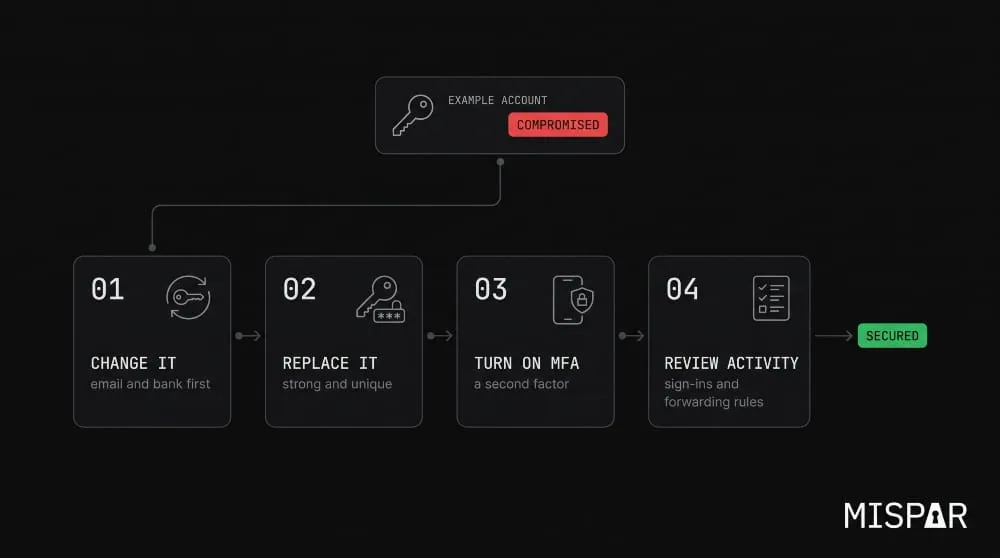
The first five minutes: change it, and everywhere you reused it
Change the compromised password immediately, starting with your email account and any financial accounts. Then change it on every other site where you used the same password, because attackers will try it everywhere. If you can no longer sign in, use the site’s password reset process.
Replace it with a strong, unique password.
Make the replacement long, random, and used for only one account. A password generator creates one in seconds, and a password manager stores it so you never have to remember it. Do not modify the old password slightly, since attackers try those variations.
Turn on multi-factor authentication and review account activity.
Multi-factor authentication means a stolen password alone is not enough to get in, so turn it on for every account that offers it. Then review recent sign-ins, connected devices, forwarding rules, and recovery details, and remove anything you don’t recognize. Attackers often add a forwarding rule or a new recovery email to keep access after you change the password.
How to fix and delete compromised passwords in your browser or manager
Open your browser’s or manager’s password checkup, work through each flagged entry by changing the password on the actual site, and then update the saved entry with the new one. Delete the saved entry only after you secure the account, and remove old entries for accounts you no longer use, since stale accounts are easy targets.
What to do if all your passwords are compromised
If everything is flagged, work in order of importance rather than trying to change everything at once. Secure your email first, then banking and payment accounts, then work and social accounts, then everything else. Set up a password manager so each new password is unique, and run a malware scan on your devices in case something is capturing passwords as you type them.
Compromised Password Alerts and Scam Messages
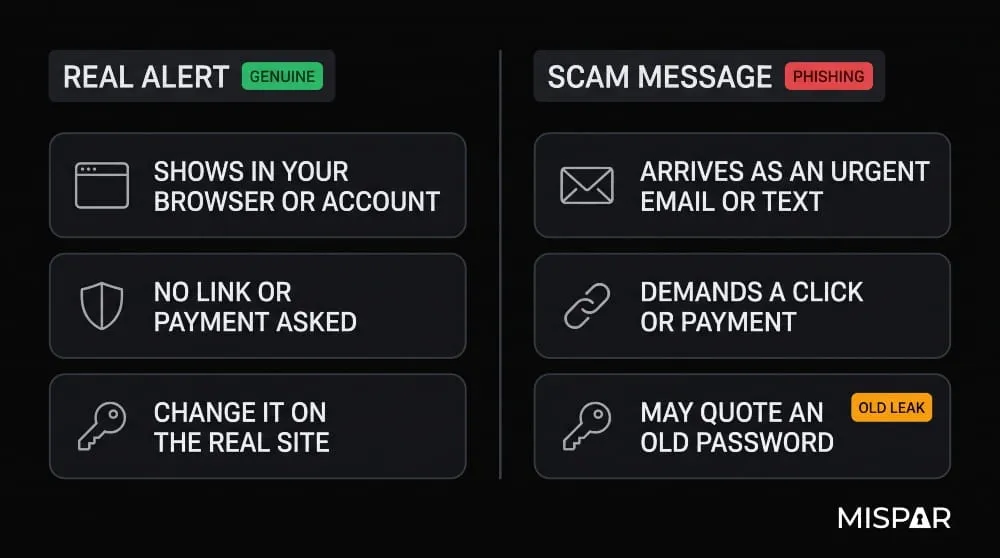
Why your browser or app says “this password has been compromised”
Your browser or password manager says a password is compromised because it matched an entry in a database of known leaked passwords, using a privacy-preserving comparison. The check happens in the background, so you may see the warning well after the leak occurred. It is a genuine signal and worth acting on.
Real alerts vs phishing emails posing as compromise warnings
Scammers send emails claiming your password has been compromised, and some include a real old password taken from a breach to make the message convincing. A genuine alert appears inside your browser, manager, or account settings, not as an urgent email demanding that you click a link or pay. If an email includes one of your old passwords, that proves a past leak, not that the sender has access to you today.
What to do when you get a compromised password message
Don’t click links or reply to the message. Instead, go directly to the site by typing its address or using your saved bookmark, check for real alerts in your account, and change the password there. If the message came from your browser or manager, follow its prompt to update the password on the real site.
What NIST and CISA Say About Compromised Passwords
Why forced password rotation is discouraged unless there’s evidence of compromise
The U.S. National Institute of Standards and Technology (NIST SP 800-63B) advises against requiring people to change passwords on a fixed schedule, because forced rotation leads to weaker, predictable passwords. It recommends changing a password when evidence shows it has been compromised. In other words, rotate on evidence, not on a calendar.
Screening new passwords against known compromised lists
NIST also advises that organizations screen new passwords against lists of commonly used and previously compromised passwords and reject matches. This prevents people from choosing a password already in circulation. CISA’s public guidance points in the same direction, recommending strong, unique passwords, a password manager, and multi-factor authentication.
The 19 Billion Compromised Passwords Leak
What was reported
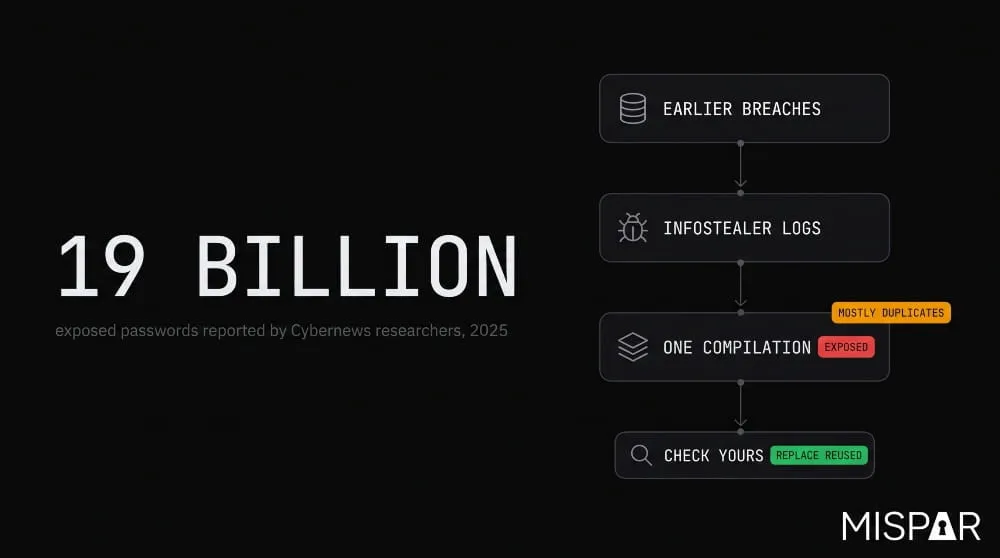
In 2025, researchers at Cybernews reported a compilation of roughly 19 billion exposed passwords gathered from many earlier breaches. Reports noted that most were duplicates, meaning the same passwords appeared again and again. It was a compilation of older and newer leaks, not a single new breach.
How to check whether your passwords were included
The simplest check is to run your saved passwords through your browser or manager’s checkup and to look up your email address with the Email Breach Check tool. Because the dataset is a collection of older leaks, any password you have reused for years is a candidate for replacement whether or not it appears in this specific compilation.
Why such collections keep growing
These collections grow because attackers merge new breaches and infostealer logs into existing lists, and people keep reusing the same passwords across years. Each new leak adds fresh entries, while old ones rarely disappear. The practical lesson is that the size of a headline number matters less than whether your own passwords are unique.
Compromised Passwords in Business and Client Environments
Why one compromised password becomes an organization-wide risk.
A compromised employee password can give an attacker a legitimate sign-in to company email, cloud apps, or remote access, and it can look like normal activity in the logs. If the employee reused it, the exposure can spread to several systems. Organizations without a way to learn about exposed credentials often find out only after an incident.
Monitoring for compromised passwords across client domains
For managed security providers, the answer is continuous monitoring rather than one-off checks, so they find exposed credentials as they appear and can reset them before they are used. Credential exposure monitoring shows which accounts across client domains are exposed, and Mispar gives MSSPs that visibility under their own brand.
Frequently Asked Questions (FAQ)
What is a compromised password?
A compromised password has been stolen, leaked, or otherwise exposed to someone who should not have it. Even a strong password counts as compromised once an attacker has it.
Is my password compromised?
Run your saved passwords through your browser or password manager’s checkup, and check your email address with a breach-check service. A match means the password has appeared in a known leak and should be replaced.
How do I check if my password has been compromised?
Use the password checkup built into your browser or manager, which compares your saved passwords with known leaked lists. Avoid typing real passwords into unfamiliar sites to test them.
What should I do if my password has been compromised?
Change it right away, change it anywhere you reused it, use a strong unique replacement, turn on multi-factor authentication, and review recent account activity for anything unfamiliar.
Why does my browser say my password is compromised?
Because the password you saved matches one found in a known data leak. The comparison runs in the background, so that the leak may be years old, but the password is still unsafe to use.
Why do all my passwords say compromised?
Usually because you reused the same password across many sites, so one leak flags them all—a few replacements, done carefully and with unique passwords, clear most of the warnings.
Is a compromised password dangerous?
Yes. It lets an attacker sign in as you, and they will often try it on your other accounts. The risk is highest for email, banking, and any account where you reused it.
Do I need to change all my passwords if one is compromised?
Change the compromised password and any account where you reused it. If you used unique passwords everywhere, the others are not affected. If you reused it widely, work through those accounts in order of importance, starting with email.